Window and game area
The window of the game is the area in which the game is displayed. It DOES NOT refer to the system window that includes the toolbar, title bar on the top and a frame on the other three sides.
Fullscreen
The "De/activate fullscreen" action allows you to toggle the game between fullscreen on/off. When the window is in fullscreen, it will take up as much area as possible. You can control the action using the "YES" and "NO" actions.
The action also accepts a Keep aspect ratio parameter (HTML5 games only). When set to "yes", the game keeps its original ratio and black bars are added on the sides or the top/bottom if the screen ratio differs. Set it to "no" to stretch the game to fill the screen.
You can use the "Fullscreen activated?" condition to check if the game is currently in fullscreen.
Window margins
The margin of the window is the distance between the side of the window and the game window displayed. Shown below is the preview of a game with 100 px margins on all 4 sides.
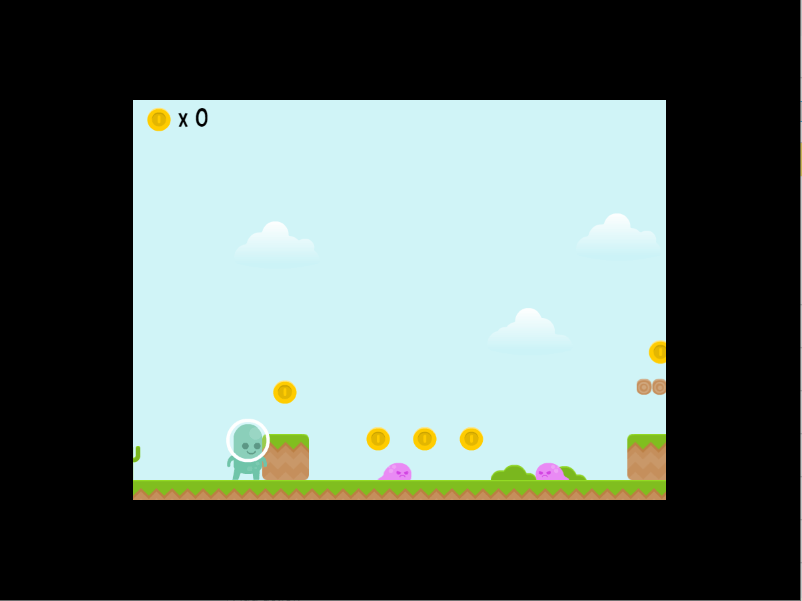
Notice the black borders on all for sides of the window. The width of the borders is 100px.
Game resolution vs. game window size
It is important to distinguish two concepts:
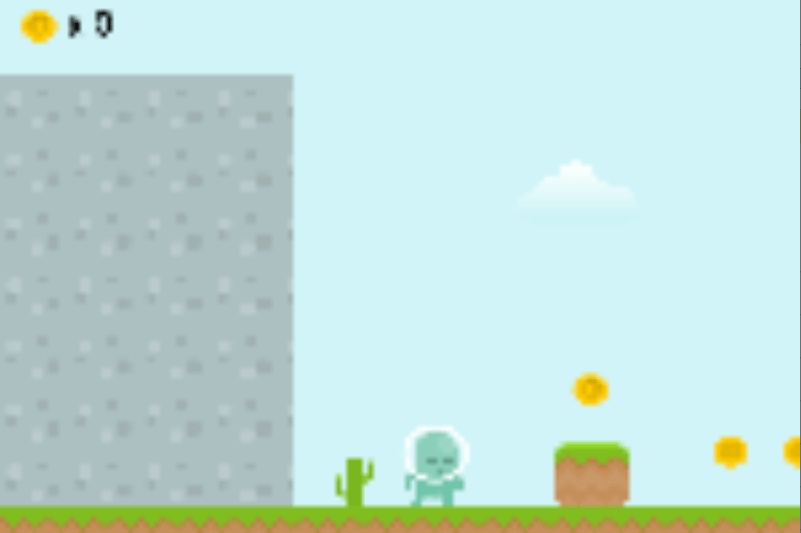
- Game resolution is the number of pixels the game renders (the size of the game's "canvas" in pixels). Use the action "Game resolution" to change it. This does not change the window size — the rendered image is stretched/scaled to fit the window.
- Game window size is the size of the system window in which the game is displayed (only meaningful on Windows, macOS and Linux — browser and mobile platforms cannot change their window size). Use the action "Game window size" to change it. This action has an Also update the game resolution? option — set it to "no" if you want the existing resolution to be stretched into the new window, "yes" to update both at once.
Resize mode
Use the action "Game resolution resize mode" to control how the game adapts when the window or screen size changes:
adaptWidth: the game width is updated to fit the window/screen, keeping the height fixed.adaptHeight: the game height is updated, keeping the width fixed.- Empty string: disables automatic resizing. The game keeps its initial resolution and is stretched or letterboxed to fit.
You can also use the action "Automatically adapt the game resolution" to turn this resize behavior on or off during the game.
Center the game window
The action "Center the game window on the screen" repositions the system window on the screen. This only works on Windows, macOS and Linux (it has no effect on the web or on mobile).
Window title
The window title is the name of the window that is visible on the title bar (located at the top) of the window. The default title name is "Preview of ProjectName" during a preview.
By default, the game name is used for the executable name (on Windows, macOS and Linux), the app name (on Android and iOS) and the title bar (on Windows, macOS and Linux) (and the page title for HTML5 games). You can learn more about it in game properties.
With the action to change the title, the title bar on Windows, macOS and Linux will be changed. Nothing will be visible on Android and iOS. For HTML5 games, the web page title will be changed.
The current title can be retrieved at runtime with the WindowTitle() string expression.
Window icon
Use the action "Window's icon" to change the icon of the game's window at runtime, pointing to an image resource of the project. This is most relevant on Windows, macOS and Linux.
Reading the window and screen size
Several expressions are available to read the current dimensions:
- SceneWindowWidth() and SceneWindowHeight(): size of the rendered scene (the game canvas), in game pixels — useful to position UI elements relative to the visible area.
- ScreenWidth() and ScreenHeight(): size of the user's full screen (or, for HTML5 games in a browser, the size of the page).
- ColorDepth(): color depth, in bits per pixel.
Reference
All actions, conditions and expressions are listed in the window reference page.